Styling options for QR codes change how a code looks, not where it goes: colours, dot shape, margin, a centre icon or logo, and a border carrying your own call to action. They come with the Basic plan ($13 a month) and above.
Written by the LinkShortener.io team · Reviewed by Shaun Reynolds, Founder · Last reviewed September 2026
Quick answer
LinkShortener.io puts nine design settings on step 2 of its Create QR Code form, from an Add Custom Border switch for call-to-action text to dot style, margin size, hex colour fields, centre icons and a logo upload. Custom design is on Basic at $13 a month and pre-built templates are on Pro at $34 a month; codes made on the free plan stay in the standard black-on-white design.
Styling changes the look, not the link. A styled code opens a short link like any other, so its scans land in the same report, while brand colours show whose code it is and the border text tells people why to scan.
Styling earns its keep where a code has to compete for attention in public, on a shop window poster, a carton on a shelf or a badge at a trade stand. A code that only ever sits inside a document or a slide deck gains nothing from colour, and the nine settings can stay where they start, on square black dots over a white background.
What are my styling options?
Nine settings sit on the Design step of the Create QR Code form, in the order the form shows them:
Design approach: Custom Design, or a pre-built template
Add Custom Border, for text and styling around the code
QR code style (the shape of the dots)
Margin size
Foreground colour
Background colour
Icon for the centre of the code
Upload logo
Add background to logo
See the styling options in action
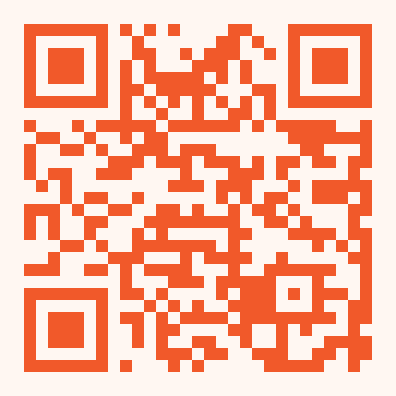
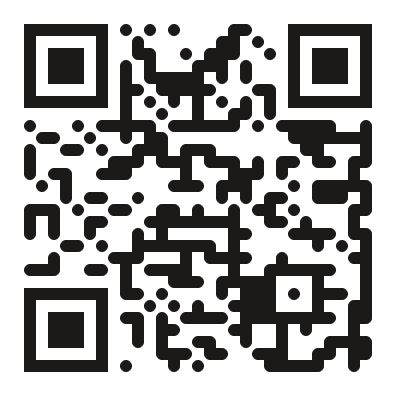
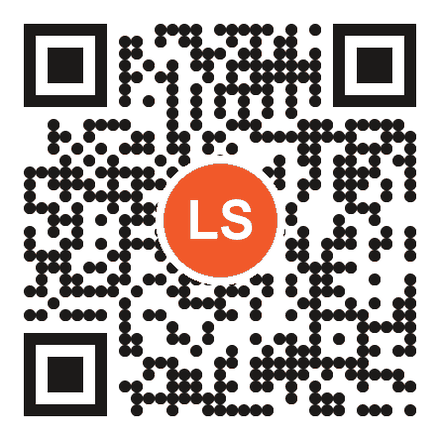
We drew the six codes below for this page to show what each setting changes; they are not exports from the app. All six open our homepage, so point your camera at any of them.
ClassicThe standard look, with sharp squares in black on white.Foreground & background coloursMatch both colours to your brand styleguide.QR code stylesDrawn here with rounded dots; in the app the QR Code Style menu starts on Square.Upload your logoYour logo in the centre, a paid option from Basic.Margins & framesA border with call-to-action text, from the Add Custom Border switch.Pre-built templates (Pro)Illustration only: most real presets use the platform's colours and put its icon in the centre.
How QR code styling options work
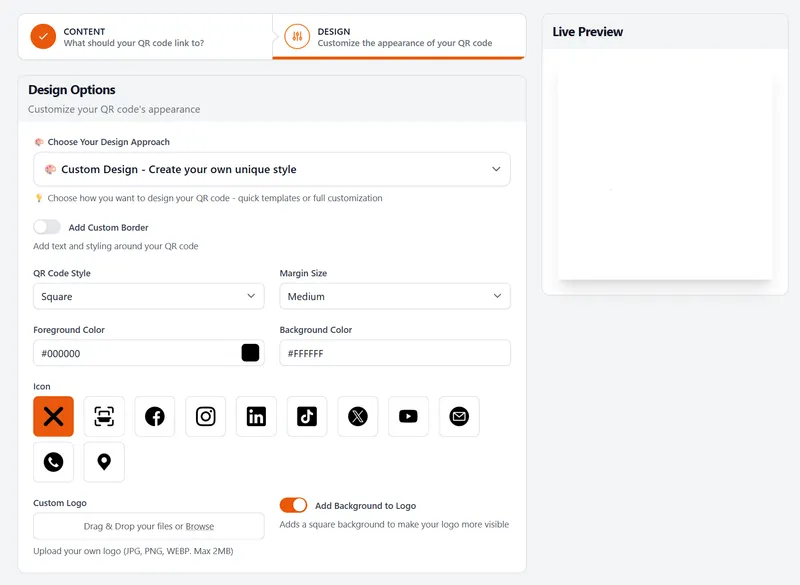
Styling comes after the basics. On step 1 of Create QR Code you name the code and enter its destination; step 2, Design, holds every styling setting, with a Live Preview panel on the right. You work down that form from the top.
The first menu decides how much you do yourself. Custom Design opens the full set of controls, while the template option brings up ready-made presets in platform colours, which are covered on our page about pre-built QR code templates. With Custom Design, QR Code Style starts on Square, Margin Size on Medium, and the colour fields on black dots over a white background.
Lower down come the centre icons and the Custom Logo upload, with a switch that puts a square behind your logo; our guide to adding a logo to a QR code covers both. That upload takes a photo as well as a logo: our co-founder put his own face in the centre of a code printed on his polo shirt, and The Gadget Show's Jason Bradbury scanned it at eCommerce Expo. Scan reports, custom domains and the rest of what a code does are on the QR code generator page.
Step 2 of Create QR Code in the LinkShortener.io app. The call-to-action frame comes from the Add Custom Border switch, second from the top; the Live Preview sits on the right. Basic plan and above.
How do I add a call-to-action frame around a QR code?
Use the Add Custom Border switch, the second setting on the Design step. It puts a border around the code and adds your own words to it, so the frame and its call to action come from one control. Borders are part of custom design, which needs the Basic plan ($13 a month) or above.
Create the code as usual, and on the Design step leave the first menu on Custom Design.
Turn on Add Custom Border. Its label sums it up: it adds text and styling around your QR code.
Type a short call to action, set the border's styling, and check the Live Preview before you create the code.
Take a café printing table cards. The dots go dark green on a white background, the border reads “Scan for today's menu”, and the logo stays out so those words get the attention. “Scan me” on its own tells nobody why they should. If the menu later moves to a new web address, changing where the printed cards point needs Pro ($34 a month), not a reprint.
Before you print a styled code
Check the file, the domain inside the code and a paper test. SVG downloads come with every plan, Free included, so even a plain black-and-white code can reach the printer as an SVG; it is the styling that starts on Basic. For the café, the domain matters more than the colours. Paid plans let you put your own custom domain in the link as you create the code, which looks tidy on a table card, but those cards stop working if the café later cancels or drops to Free; cards made on the shared tli.sh domain carry on scanning.
When you place the file in the card artwork, keep other print out of the quiet zone, the blank margin around the pattern: Denso Wave's rule for the code area makes it four modules wide, meaning four of the code's small squares, on each side. Last, print one card at its real size and scan it from where a customer would sit. The QR code size and viewing distance chart gives a starting size for menus, counters and posters.
Do styled QR codes still scan reliably?
Yes, provided the dots stay clearly darker than the background and the border text doesn't crowd them. Watch the Live Preview as you go, then scan a printed copy before the full run. Denso Wave's QR code FAQ says the same about colour: only some colour pairs can be read, so coloured codes need testing before you rely on them. Our guide to making a custom QR code that scans explains which colour choices cause trouble.
Can I use my brand's exact colours?
Yes. Foreground and background colours are hex fields, set to #000000 and #FFFFFF when you start, so you can paste the exact values from your brand guidelines. If your palette has a light and a dark shade, put the dark one on the dots.
Are the styling options included for free?
No. A free account makes 20 short links or QR codes a month in total, all in the standard black-on-white design. There is no watermark on the pattern; the one addition is a small 'created by linkshortener.io' line printed below it. Colours, borders, icons and logos come with Basic at $13 a month, and a code downloaded again after upgrading loses that line; templates need Pro at $34 a month.
Sign up today for free!
Make your first plain codes on a free account, then move to Basic ($13 a month) when a code needs your colours, a border with a call to action or your logo.